
Are you a student trying to apply for the latest internships on the AICTE portal but getting stuck at the profile update stage? You are not alone.
The AICTE Internship Portal is a massive opportunity for Indian students to secure internships with top companies like Salesforce, Google, and Microsoft. However, a common roadblock for many is completing the profile section—specifically, adding educational qualifications.
If your profile is incomplete, you cannot apply for internships. This guide will walk you through the exact steps to add your 10th, 12th, and graduation details so you can start applying immediately.
Prerequisites: Before You Log In
To ensure a smooth process, keep the following handy:
- Your AICTE Student ID (Email) and Password.
- Percentage/CGPA of your 10th, 12th, and current degree.
- A stable internet connection (the portal can sometimes be slow during peak hours).
Step-by-Step: How to Add Qualifications on AICTE Internship Portal
Follow these steps carefully to update your academic details.
Step 1: Login to the Student Dashboard
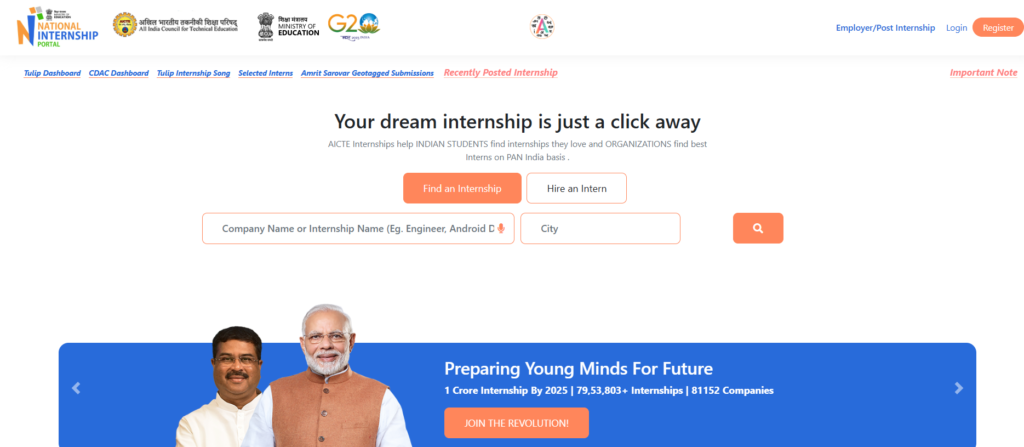
- Visit the official website: https://internship.aicte-india.org/.
- Click on the “Login” button at the top right corner.
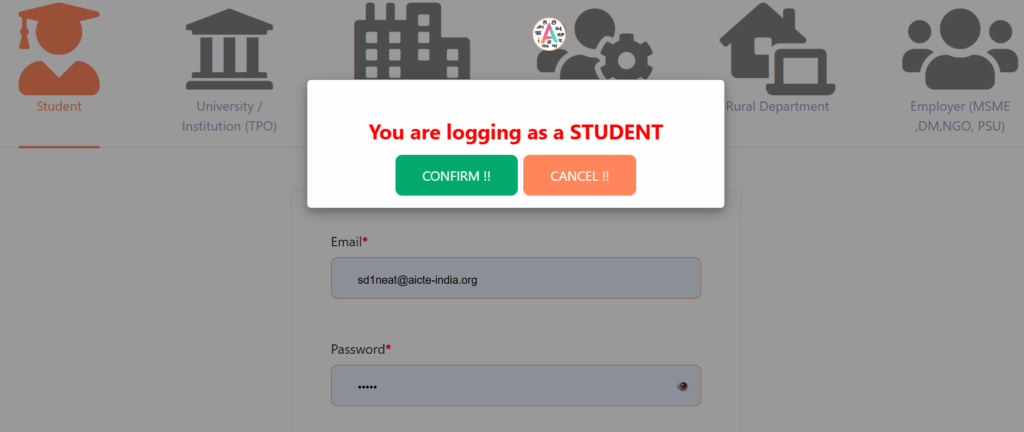
- Select “Student” from the dropdown menu.
- Enter your registered Email ID and Password, complete the captcha, and hit login.
Step 2: Navigate to the Profile Section
Once logged in, you will see your dashboard.
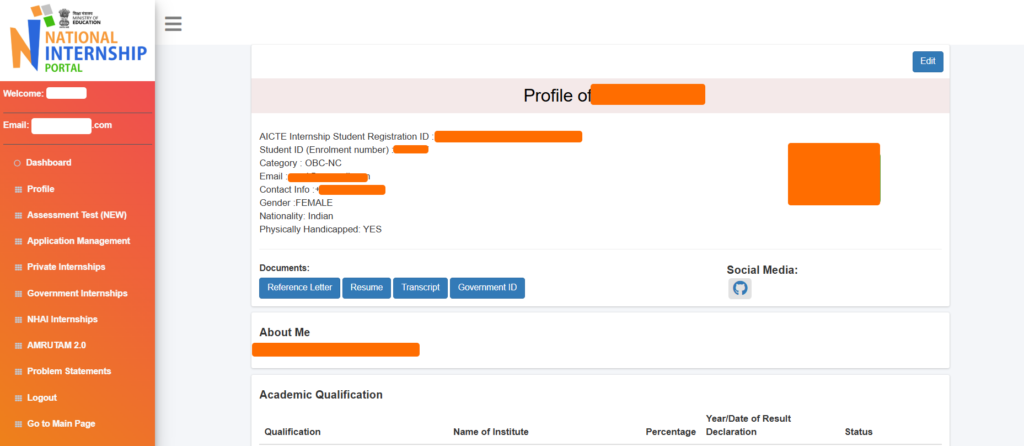
- Look for the “Profile” tab on the left-hand sidebar or the top menu.
- Click on it to expand the options.
- Select “Profile Settings” or “Edit “.
Step 3: Locate the ‘Qualifications’ Tab
Inside your profile, you will see different tabs for Personal Details, Skills, and Contact Info.
- Click on the tab labeled “Qualifications”.
- Note: You must fill in your Personal Details first before the portal allows you to save educational data.
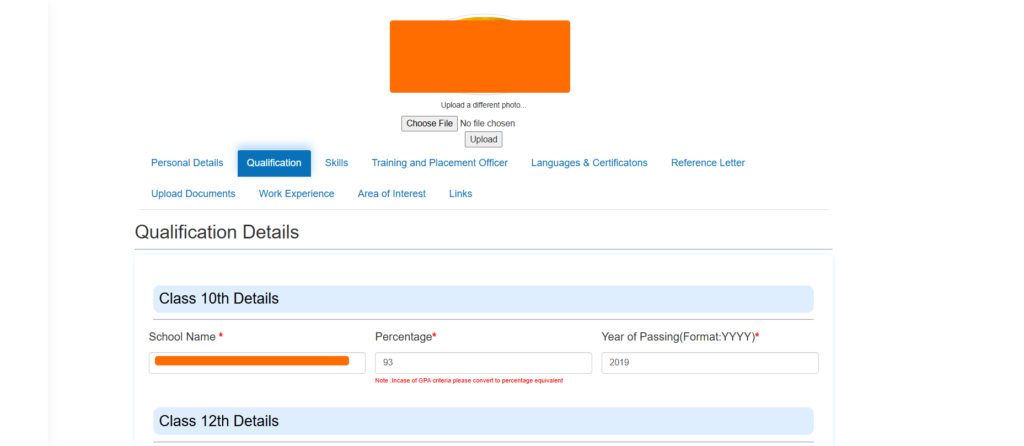
Step 4: Add Class 10th and 12th Details
The portal requires a chronological history of your education.
- 10th Standard: Enter your Board name, School name, Year of Passing, and Percentage.
- 12th / Diploma: Select the appropriate option. If you did a Diploma after the 10th, choose that instead of the 12th. Enter your stream (e.g., Science, Commerce) and percentage.
Step 5: Add Graduation / Current Degree Details
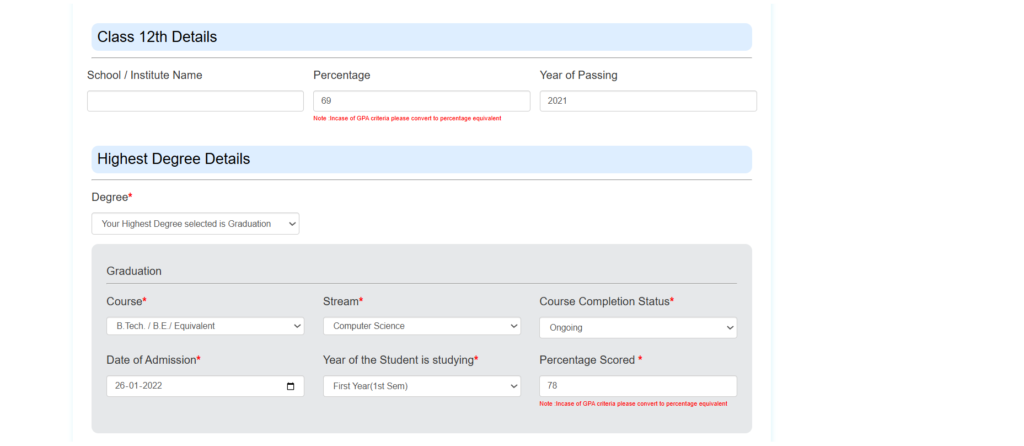
This is the most critical part for internship eligibility.
- Degree Type: Select “UG/PG/Diploma” (Undergraduate) or “Diploma” depending on your course.
- Course: Choose your degree (e.g., B.E., B.Tech, B.Sc, BCA).
- Stream: Select your specialization (e.g., Computer Science, Mechanical, Civil).
- Tip: If you can’t find your exact stream, look for the closest equivalent or “General”.
- Status: Select “Ongoing” if you are currently studying.
- Date of Admission: If You select Ongoing.
- Completed Year : If you select Completed the status.
- Year of Studying : 1 Year / 1 Sem, 2nd Year, 3rd Year
- Percentage/CGPA: Enter your aggregate score up to the last semester.
- University/Institute: You already selected on the registration time
Step 5: Add Common Entrance Test
Add if you Attempt any Entrance Exam. it will help for getting internship.
- CET(Common Entrance Test) Name
- Year of CET
- Mark Scored

Step 6: Save and Verify
- Click the “Save” or “Update” button at the bottom of the form.
- You should see a pop-up message saying “Profile Updated Successfully”.
- Refresh the page to ensure the data is still there.
Troubleshooting: Common Errors and Fixes
Issue 1: “Stream Not Visible in Dropdown”
- Fix: Try changing the “Degree” type. Sometimes specific streams are listed under “Engineering” rather than “Technology”. If it’s still missing, select “Others” and manually type it if the option allows, or contact your college TPO (Training and Placement Officer).
Issue 2: “Save Button Not Working”
- Fix: Check if you have left any mandatory field (marked with a red asterisk *) empty. Also, ensure your percentage is entered as a number without the “%” symbol (e.g., write 85.5, not 85.5%).
Issue 3: “Getting Any Other Error”
- Fix: Try After Some time
Final Thoughts
Updating your qualification on the AICTE Internship Portal is a five-minute task that can define your early career. Don’t let a technical oversight stop you from applying to the massive “1 Crore Internship” initiatives launched by the government.
Action Item: Log in to your portal right now and check if your “Current Semester” and “Percentage” are up to date. An updated profile is an active profile!
FAQ: Frequently Asked Questions
Q: Can I update my qualification after applying for an internship? A: No, You can get the internship with filled your Qualification.
Q: What if my college is not in the list? A: You can select “Others” or “Non-AICTE” during the initial registration, but it is best to ask your college administration to register themselves on the portal for verification purposes.
Q: Is it mandatory to upload mark sheets? A: Yes You have upload combined document on this portal .
Important Articles
How to Register on SWAYAM Portal and Enroll in Courses: A Step-by-Step Guide
Free Assessment Test on the AICTE Internship Portal