
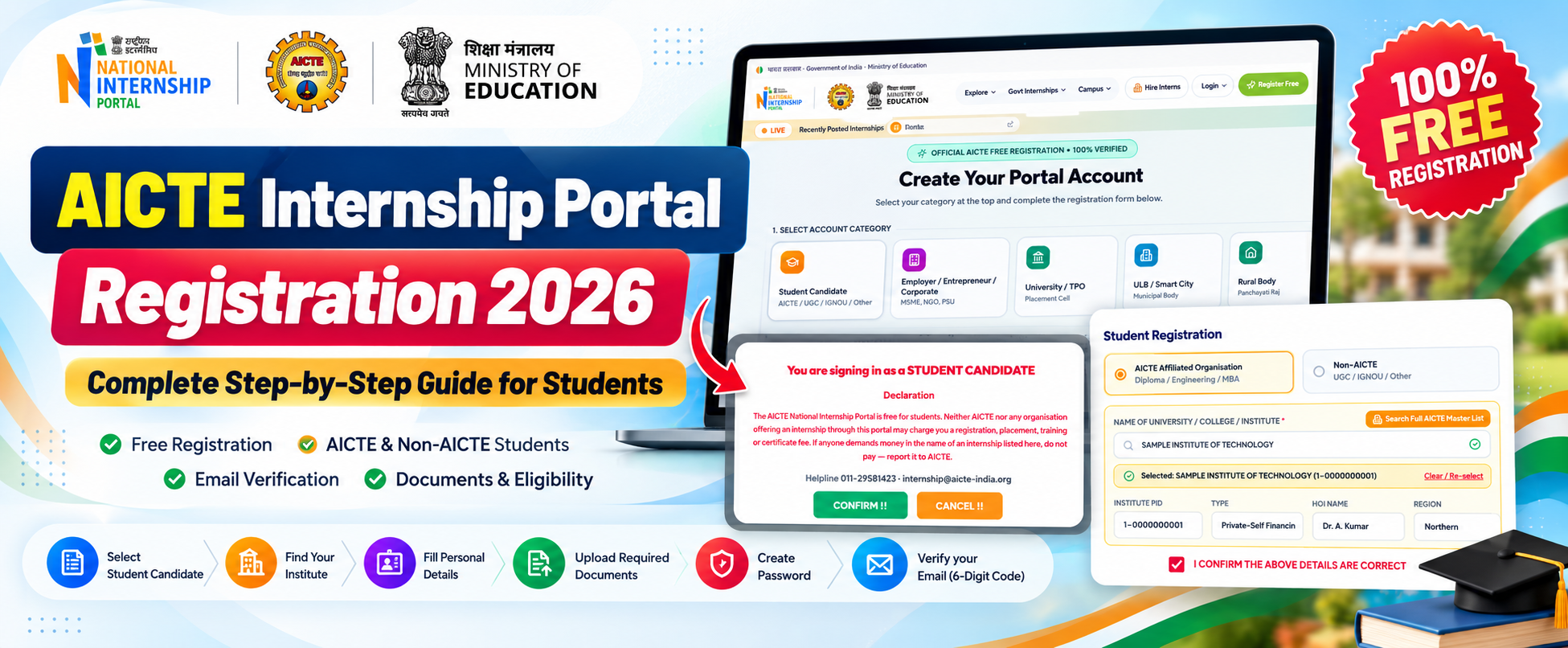
The AICTE Internship Portal Student Registration 2026 process allows students from AICTE-affiliated as well as Non-AICTE institutions to create an account on the National Internship Portal. The registration form covers institute details, personal information, academic details, documents, password creation and email verification. student-registration-guide
This guide explains the complete registration process step by step, including AICTE institute selection, Non-AICTE registration, required documents, Aadhaar details, category certificate, password creation, email verification and common registration errors.
Important: Student registration on the portal is free. According to the registration declaration, neither AICTE nor an organisation offering an internship through the portal may charge students a registration, placement, training or certificate fee. student-registration-guide
AICTE Internship Portal Student Registration 2026 – Overview
| Particular | Details |
|---|---|
| Portal | AICTE National Internship Portal |
| Registration Type | Student Candidate |
| Registration Fee | Free |
| Eligible Institute Types | AICTE / UGC / IGNOU / Other |
| AICTE Students | Institute selected from AICTE directory/master list |
| Non-AICTE Students | Institute information entered manually |
| Mobile Number | 10 digits |
| Aadhaar | 12 digits |
| College ID | JPG/JPEG/PNG, under 3 MB |
| Category Certificate | PDF/JPG/JPEG/PNG, under 2 MB where applicable |
| Email Verification | 6-digit verification code |
| Code Validity | 30 minutes |
| Registration Mode | Online |
The registration form is completed on one page, with mandatory fields identified using a red asterisk (*). student-registration-guide
Who Can Register as a Student Candidate?
Students studying under different types of institutions can use the Student Candidate registration option. The registration screen identifies the student category as:
Student Candidate – AICTE / UGC / IGNOU / Other.
Students are then asked to choose between:
AICTE Affiliated Organisation – intended for categories such as Diploma, Engineering and MBA.
Non-AICTE – intended for UGC, IGNOU and other institutions. student-registration-guide
This distinction is important because the process for entering your institute details is different for the two options.
How to Register on AICTE Internship Portal – Complete Process
Step 1: Open the Registration Page
Start by opening the National Internship Portal registration page.
On the portal, click the “Register Free” button.
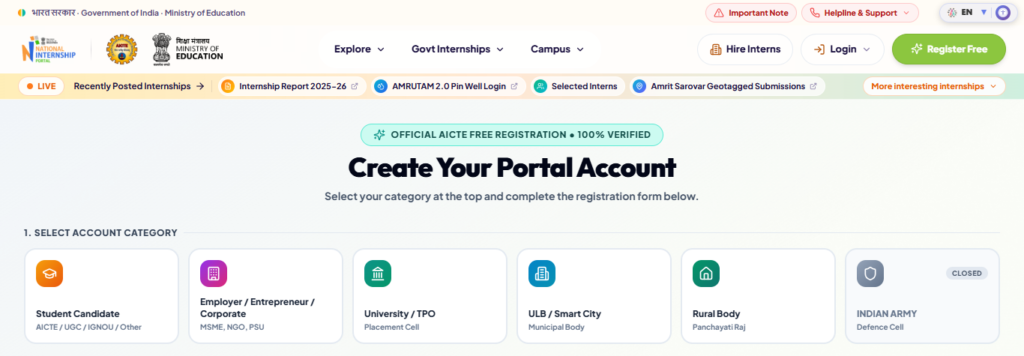
The registration page displays different account categories, including:
- Student Candidate
- Employer / Entrepreneur / Corporate
- University / TPO
- ULB / Smart City
- Rural Body
- Indian Army
For student registration, select Student Candidate – AICTE / UGC / IGNOU / Other. student-registration-guide
The Student Candidate option should be selected carefully because the following form is specifically designed for students.
Step 2: Read and Confirm the Student Declaration
After selecting Student Candidate, a declaration pop-up appears.
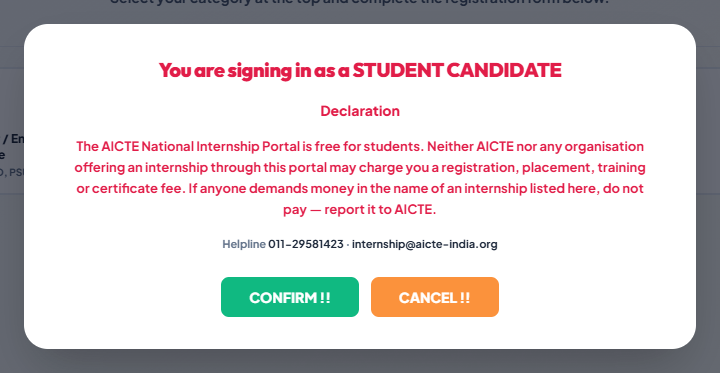
It states that you are signing in as a STUDENT CANDIDATE and highlights that the AICTE National Internship Portal is free for students.
Students should read this declaration carefully.
Click:
CONFIRM !! – to continue with registration.
CANCEL !! – if you do not want to proceed. student-registration-guide
The declaration also warns students not to pay anyone demanding money in the name of registration, placement, training or certification.
Step 3: Select AICTE or Non-AICTE Institute
The next important part is choosing your institute affiliation.
Two options are available:
AICTE Affiliated Organisation
Select this if your institution falls under the AICTE-affiliated option shown on the portal, such as Diploma, Engineering or MBA.
Non-AICTE
Select this if your institution comes under UGC, IGNOU or another category.
If you are unsure whether your institute is AICTE affiliated, the form provides a “Check Here” option. student-registration-guide
Step 4: Select Your AICTE Institute
Students selecting AICTE Affiliated Organisation need to choose their institute from the portal’s AICTE institute records.
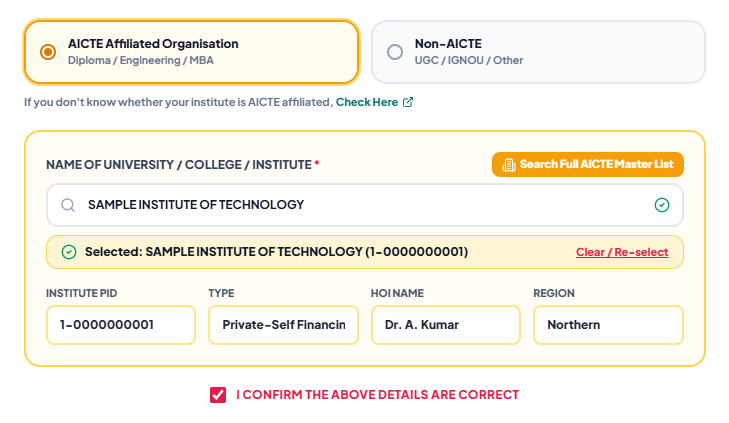
Start entering the Name of University / College / Institute.
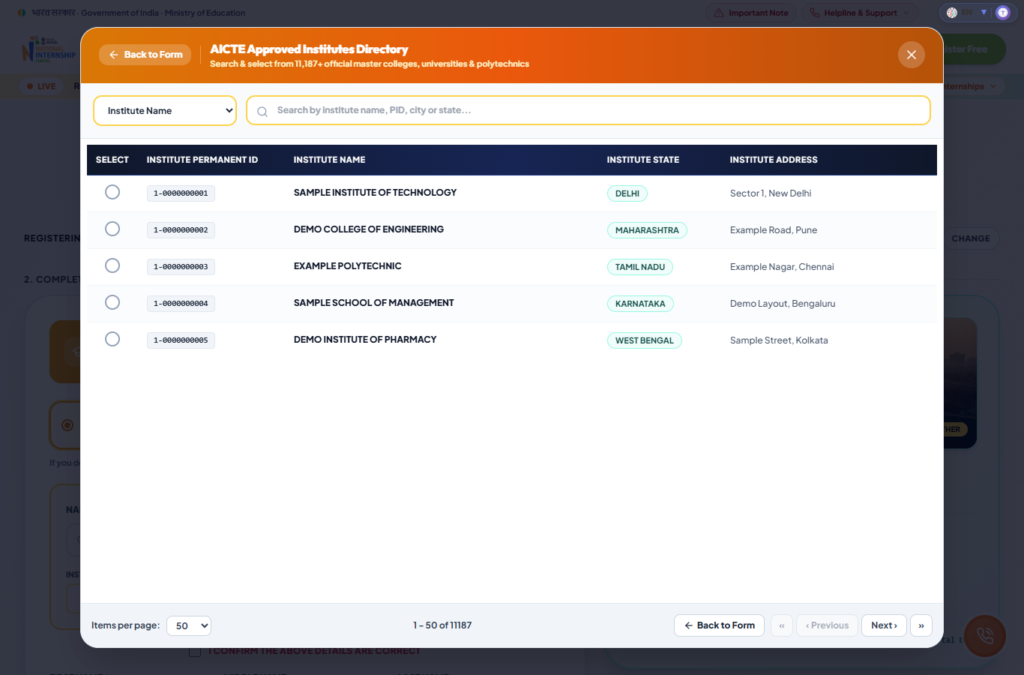
You can search using the institute name or PID. The Search Full AICTE Master List option provides a larger directory where institutes can be searched using details such as name, PID or state. student-registration-guide
Important
Simply typing the institute name is not enough for an AICTE institute. You need to select the institute from the available suggestions or master list so the associated institute information can be populated. student-registration-guide
AICTE Approved Institutes Directory
The directory displays information such as:
| Field | Purpose |
|---|---|
| Institute Permanent ID | AICTE PID of the institute |
| Institute Name | Registered institute name |
| Institute State | State/UT |
| Institute Address | Registered address |
Select the correct institute from the available records.
Once selected, the registration form automatically fills read-only information including:
Institute PID, Type, HOI Name and Region. student-registration-guide
Students can use Clear / Re-select if the wrong institute has been chosen.
Step 5: Registration for Non-AICTE Students
The process is slightly different if you choose Non-AICTE – UGC / IGNOU / Other.
Instead of selecting the institution from the AICTE master directory, enter your institution information manually.
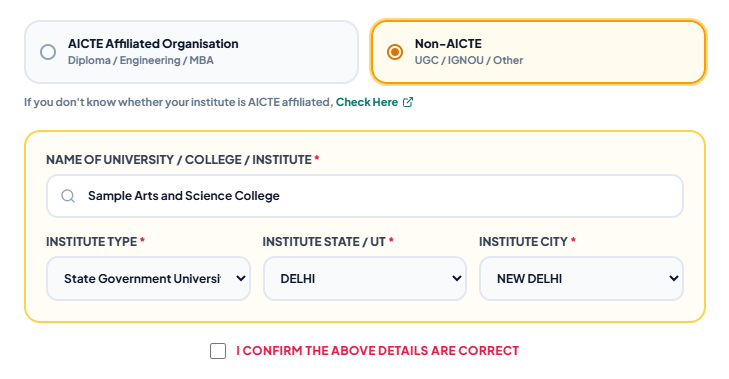
You need to provide:
Name of University / College / Institute
Institute Type
Institute State / UT
Institute City
The institute type may include options such as Private, Government, Central University or State Government University, depending on the available choices. student-registration-guide
Make sure the information matches your actual institution.
Step 6: Confirm Institute Details
Once your institute has been selected or entered, check the information carefully.
Tick:
“I CONFIRM THE ABOVE DETAILS ARE CORRECT”
This confirmation is mandatory.
If you change the institute afterwards, the confirmation is removed and needs to be selected again. student-registration-guide
Step 7: Enter Personal Details
Next, complete your personal information.
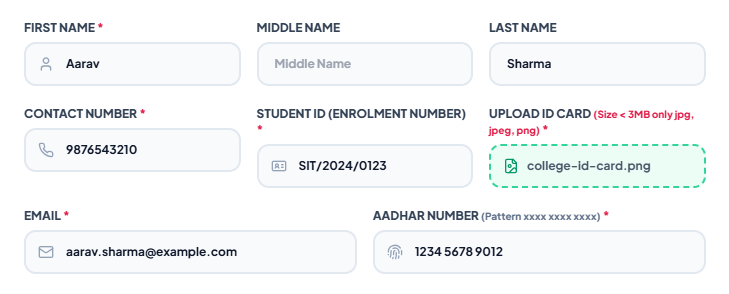
Enter your name according to your Aadhaar details:
First Name*
Middle Name – optional
Last Name – optional
The guide specifically instructs students to enter their name as it appears on Aadhaar. student-registration-guide
Step 8: Enter Contact Number
Enter a valid 10-digit mobile number.
The contact field accepts numeric input.
Avoid adding:
+91
or an extra 0 before your number.
The registration validation expects exactly 10 digits. student-registration-guide
Step 9: Enter Student ID / Enrolment Number
Enter your:
Student ID (Enrolment Number)
Use the enrolment number exactly as it appears on your college ID card. student-registration-guide
For example:
SIT/2024/0123
The actual format will depend on your institution.
Step 10: Upload College ID Card
Students are required to upload their college ID card.
Accepted file formats
JPG, JPEG or PNG
Maximum size
Under 3 MB
A clear photograph or scanned copy of your college ID card can be uploaded. Once successfully attached, the upload area displays the selected filename. student-registration-guide
Make sure the document is readable before uploading.
Step 11: Enter Email Address
Enter an email address that you currently have access to.
This is particularly important because the registration verification code is sent to this email address, and the email is also used as the login username. student-registration-guide
Double-check the spelling of your email before continuing.
Step 12: Enter Aadhaar Number
Enter your 12-digit Aadhaar number.

The form formats it in the following pattern:
xxxx xxxx xxxx
The registration guide states that the field requires 12 digits. student-registration-guide
Common Aadhaar Error
If an incorrect number of digits is entered, the form can display:
“Enter your 12-digit Aadhaar number.”
Check that all 12 digits have been entered correctly. student-registration-guide
Step 13: Select State and City/District
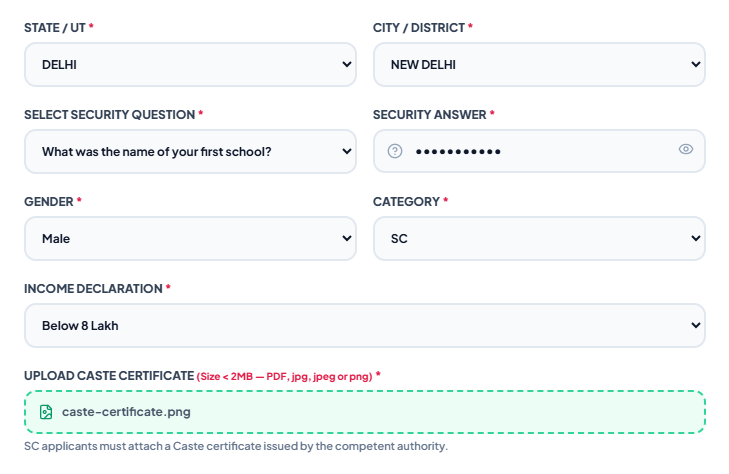
Next, select your:
State / UT
and
City / District
Select the state first so that the relevant city/district options can load.
For AICTE students, these details may already be populated from the selected institute. The source guide notes that Non-AICTE students enter their institute location earlier in the registration process. student-registration-guide
Step 14: Choose Security Question
Select a security question and provide its answer.
Examples shown in the guide include:
“What was the name of your first school?”
or
“In which city were you born?”
Remember your answer because it may be important for account-related processes later. The form also provides an eye icon for viewing the entered security answer. student-registration-guide
Step 15: Select Gender
Choose the appropriate gender option.
The guide lists:
Male
Female
Transgender / Other student-registration-guide
Step 16: Select Your Category
Select the applicable category:
GENERAL / OBC / SC / ST / EWS
The registration form changes depending on the category selected. student-registration-guide
GENERAL
No additional category document is specified.
OBC / SC / ST
A Caste Certificate issued by the competent authority must be uploaded.
Accepted formats:
PDF, JPG, JPEG or PNG
Maximum size:
Under 2 MB
SC / ST
The guide additionally shows an Income Declaration with options:
Above 8 Lakh
or
Below 8 Lakh
EWS
Students need to upload an EWS / income certificate in the supported format and size. student-registration-guide
Be careful when changing the category because the guide notes that changing it removes an already attached certificate.
Step 17: Select Last Passed Course
Choose your most recently passed course.
Available choices listed in the guide include:
10, 12, Diploma, Graduation, Post Graduation, Others. student-registration-guide
Select the option that correctly represents your academic status.
Step 18: Enter Academic Percentage or Grade
Enter your:
Academic Percentage / Grade
Examples:
78.5
or
A+
Do not enter the % symbol when providing a percentage. student-registration-guide
Step 19: Create Your Password
Create a password and enter it again under Confirm Password.
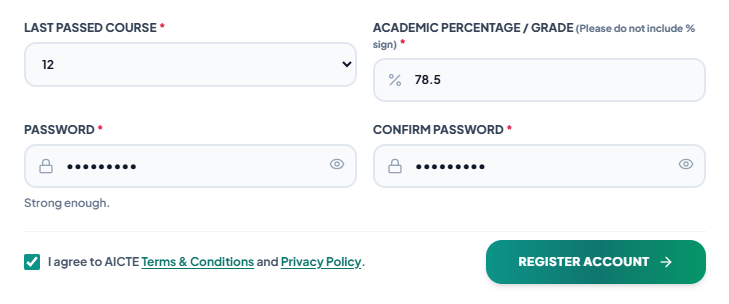
According to the registration requirements, the password must contain:
- At least 8 characters
- At least one uppercase letter
- At least one lowercase letter
- At least one number
Symbols are optional, with the guide listing supported symbols such as # $ % ^ & * ( ) _ + = . ? !. student-registration-guide
When the password meets the requirements, the form can display:
“Strong enough.”
The Password and Confirm Password fields must match.
Step 20: Accept Terms & Conditions
Before submitting the registration form, tick:
“I agree to AICTE Terms & Conditions and Privacy Policy.”
The Register Account button becomes active after the required conditions are satisfied, including accepting the Terms checkbox. student-registration-guide student-registration-guide
Step 21: Click Register Account
Review all the information one final time and click:
REGISTER ACCOUNT
During submission, the button can show:
“Creating Account…”
After successful account creation, the student is informed to check their inbox for the 6-digit verification code and is taken to the email verification page. student-registration-guide
AICTE Internship Portal Email Verification
Registration is followed by email verification.
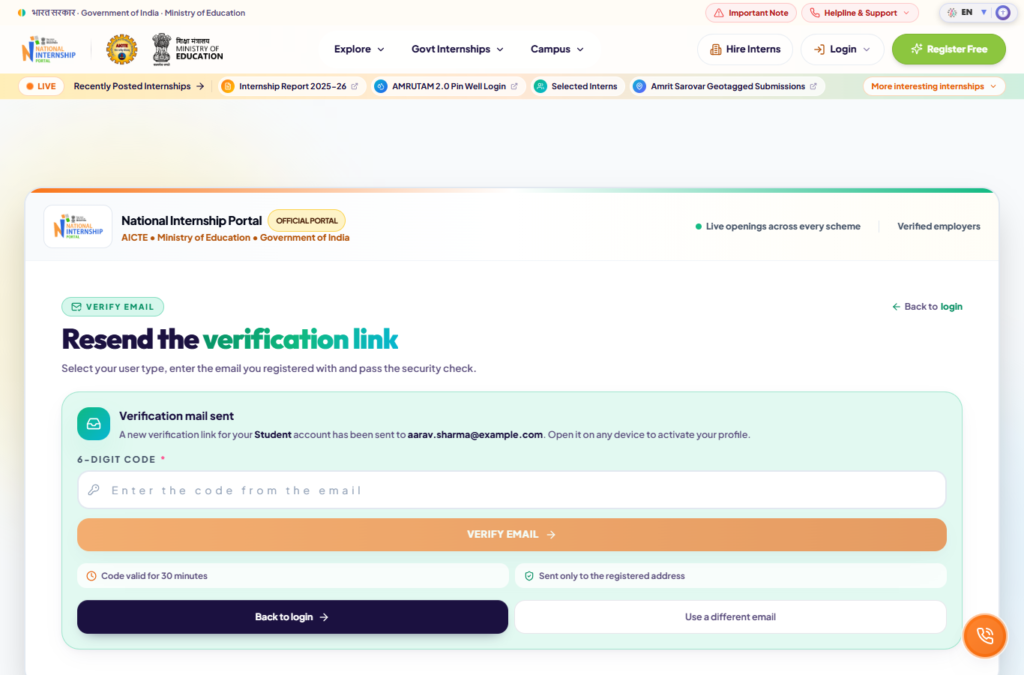
A verification message is sent to the registered email address.
Enter the 6-digit code received in your inbox and click:
VERIFY EMAIL
The code remains valid for 30 minutes. student-registration-guide
After successful verification, the portal displays a confirmation and proceeds toward completion of the activation process.
Didn’t Receive the Verification Code?
First check your email’s Spam/Junk folder.
If you still cannot find the message, use the Resend verification link option.
According to the supplied guide, you then need to select:
User Type: Student
Enter your:
Registered Email
Complete the security check and submit the request. student-registration-guide
Documents Required for AICTE Internship Portal Registration
Keep the following information and documents ready before beginning:
| Document / Information | Requirement |
|---|---|
| Institute Name | Exact institute name |
| AICTE PID | Useful for finding an AICTE institute |
| Student ID | Enrolment number from college ID |
| College ID Card | JPG/JPEG/PNG, under 3 MB |
| Aadhaar Number | 12 digits |
| Mobile Number | 10 digits |
| Active and accessible | |
| Academic Details | Last passed course + percentage/grade |
| Caste Certificate | Required for OBC/SC/ST |
| EWS/Income Certificate | Required for EWS |
| Category Certificate Size | Under 2 MB |
| Password | 8+ characters with upper/lowercase and number |
The source guide recommends keeping these ready before opening the form because it states that the form does not save a draft. student-registration-guide
Common AICTE Internship Portal Registration Errors
Several common errors can occur during registration.
| Problem | Solution |
|---|---|
| AICTE institute not accepted | Select it from suggestions or AICTE Master List |
| Institute confirmation missing | Tick “I confirm the above details are correct” |
| Invalid mobile number | Enter exactly 10 digits |
| ID card upload error | Use JPG/JPEG/PNG under 3 MB |
| Invalid Aadhaar | Enter exactly 12 digits |
| Category certificate missing | Upload the applicable certificate |
| Percentage error | Don’t include % |
| Weak password | Add uppercase, lowercase and number |
| Password mismatch | Enter the same password twice |
| Email already registered | Login or use Forgot Password |
| Mobile already registered | Use the account associated with that mobile |
These errors and corrective actions are described in the registration guide’s common error section. student-registration-guide
What to Do After Registration?
Once registration is submitted, complete the email verification process to activate the account.
After verification, go to the login page, select Student, and sign in using the registered email address and password.
The guide states that students can then use their account for activities such as applying for internships, tracking applications and downloading certificates. student-registration-guide
Important Tips Before Submitting the Form
Before clicking Register Account, check your institute selection, name, mobile number, Aadhaar, email, Student ID, uploaded documents, category, academic information and password.
For AICTE-affiliated institutes in particular, ensure that you actually select the institute from the available directory/suggestions rather than only typing its name. This allows the Institute PID and associated details to populate correctly. student-registration-guide
Also ensure that your email is accessible immediately because you will need the verification code after account creation.
Frequently Asked Questions (FAQs)
1. Is AICTE Internship Portal student registration free?
Yes. The supplied registration guide states that registration is free and warns students not to pay registration, placement, training or certificate fees for internships listed through the portal. student-registration-guide
2. Can Non-AICTE students register?
Yes. Student Candidate covers AICTE / UGC / IGNOU / Other, with a separate Non-AICTE institute entry process. student-registration-guide
3. What is the maximum college ID card size?
The college ID card must be JPG, JPEG or PNG and under 3 MB. student-registration-guide
4. Is Aadhaar required?
The supplied registration form guide lists Aadhar Number as a mandatory 12-digit field. student-registration-guide
5. Do SC/ST/OBC students need a caste certificate?
The guide specifies a caste certificate for OBC, SC and ST students, in PDF/JPG/JPEG/PNG format under 2 MB. student-registration-guide
6. How long is the email verification code valid?
The 6-digit verification code is valid for 30 minutes. student-registration-guide
7. What if my AICTE institute is not being selected?
Search by institute name or PID and select the institute from the suggestions or Search Full AICTE Master List. Typed text alone is not accepted for the AICTE selection flow described in the guide. student-registration-guide
8. Can I enter 78.5% in the academic percentage field?
Enter 78.5, not 78.5%. The form specifically asks users not to include the percentage sign. student-registration-guide
9. What should I do if my email is already registered?
The guide recommends logging into the existing account or using Forgot Password. student-registration-guide
10. What happens after email verification?
After verification, students can log in with their registered email and password and use their student account for internship-related activities. student-registration-guide
AICTE Internship Portal Student Registration Helpline
The supplied guide lists the following support details:
Helpline: 011-29581423
Timing: Monday–Friday, 9:00 AM–6:00 PM IST
Email: internship@aicte-india.org student-registration-guide
Conclusion
The AICTE Internship Portal Student Registration 2026 process is straightforward when all documents and details are prepared beforehand. Students first select Student Candidate, choose AICTE or Non-AICTE institute affiliation, confirm their institute information, enter personal and academic details, upload the required documents, create a password and submit the registration form.
The final and important step is email verification using the 6-digit code. Once the email is verified, students can log into their account and proceed with internship-related activities available through the portal. student-registration-guide


National students code
Hi Imran I am not understand your question . Pls tell me in brief.
My college details are wrong and there is no option to edit it.How can I change it
Share your college details
aicteinternship